2026-07-13 · Niklas Goede · 6 min read
Speech to Text on a Mac: What Actually Works
Every Mac has speech to text built in. It's free, it's already on your machine, and most people who search for "speech to text on a Mac" just want to know how to turn it on. That part is simple.
Whether it's good enough for real work is a different question, and the honest answer is: it depends on what you're using it for.
Part of why dictation matters at all: most people type around 40 words per minute, but speak at 150 to 200.
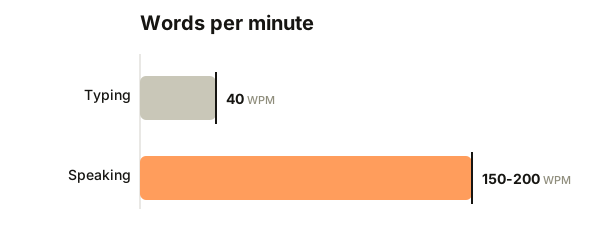
Average typing speed vs. average speaking speed, in words per minute.
Curious what that gap is worth for you specifically? Try the time-saved calculator with your own typing speed.
How to turn on speech to text on a Mac
Go to System Settings → Keyboard → Dictation and turn it on. Once it's enabled, press the Fn key twice (or set your own shortcut) in any text field, anywhere on the Mac, and start talking. Apple added an on-device mode a few years back, so short dictation works without an internet connection on Apple Silicon Macs.
That's it. No download, no account, no setup. For jotting a quick note or filling in a form field, native dictation is genuinely fine.
Where native dictation falls short
The gap shows up once you're dictating anything longer than a sentence or two. A few consistent complaints come up across forums and reviews:
- Filler words and false starts stay in the text. If you say "so, um, I think we should, uh, move the meeting," that's what ends up on the page. There's no cleanup step.
- Punctuation has to be spoken out loud. Saying "comma" and "period" mid-sentence breaks your train of thought, which defeats the point of dictating in the first place.
- Accuracy drops with jargon, names, and brand terms. Native dictation has no way to learn your vocabulary, so it keeps getting the same words wrong.
- It's built for short bursts, not long-form writing. Drafting an email is fine. Drafting a document, a support reply, or an investor update is where it starts to feel clunky.
None of this means native dictation is broken. It means it was built as a convenience feature, not a writing tool.
Cloud-based dictation apps
The next tier is cloud-based AI dictation, tools like Wispr Flow. These send your audio to a server, run it through a larger model, and return cleaned-up text: filler words removed, punctuation added automatically, formatting applied. The accuracy jump over native dictation is real, and it's why these tools have found an audience well beyond their original niche. See the full Ekkooo vs. Wispr Flow comparison for a detailed breakdown.
The trade-off is where the processing happens. Your voice leaves your Mac and goes to a third-party server before you see any text. For a lot of people that's a non-issue. For anyone dictating client details, unreleased product plans, or anything they'd rather not hand to a cloud API, it's worth knowing that's how the tool works before you rely on it daily.
On-device AI dictation apps
The newer category, and the one growing fastest among Mac power users, is local AI dictation: apps like Superwhisper, VoiceInk, Voibe, and Ekkooo. These run the same kind of AI transcription and cleanup as the cloud tools, but the model runs on the Mac itself. Nothing gets sent anywhere.
Practically, that means:
- Speed. No round trip to a server, so text appears as fast as you can speak it.
- Privacy by default. There's nothing to configure, because the audio never leaves the machine.
- Works offline. Useful on a flight, in a basement office, or anywhere the wifi is unreliable.
The apps in this category differ mainly in scope. Some (Superwhisper) have grown into broad toolkits with meeting notes and file transcription built in. Others (VoiceInk) are lean, one-time-purchase tools built by a single developer. Ekkooo sits closer to the second group: a focused dictation tool, not a suite, built for people who write a lot and want the fastest possible path from thought to text.
Native vs. cloud vs. on-device, side by side
The three approaches differ mostly in one place: what happens to your voice between the moment you speak and the moment text appears.
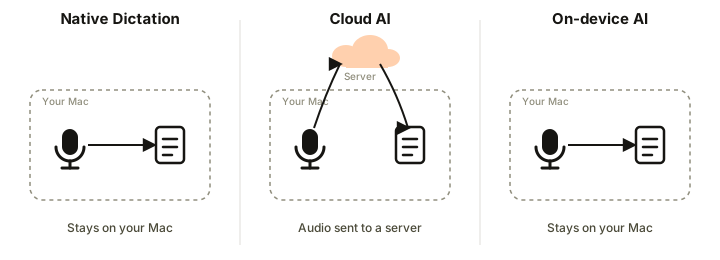
Where your voice goes with each approach.
| Native Dictation | Cloud AI (e.g. Wispr Flow) | On-device AI (e.g. Ekkooo) | |
|---|---|---|---|
| Cost | Free | Subscription | Subscription or one-time |
| Setup | None, built in | Account + app install | App install |
| Cleans up filler words | No | Yes | Yes |
| Spoken punctuation required | Yes | No | No |
| Works offline | Short dictation only | No | Yes |
| Where the audio goes | Processed on-device | Sent to a server | Never leaves the Mac |
| Best for | Quick notes, short messages | Best accuracy, no privacy concerns | Long-form writing, sensitive content, all-day use |
How to choose
A rough way to think about it:
- Occasional, short dictation (a text message, a quick note): native dictation is enough. Don't install anything.
- Longer writing, occasional use, comfortable with cloud processing: a cloud dictation app will get you the best raw accuracy with zero setup.
- Writing all day, every day, or working with anything sensitive: an on-device tool is worth the five minutes of setup. You get cloud-level accuracy and cleanup without sending audio anywhere.
If you're a solo founder, a creator, or anyone whose job is mostly turning thoughts into text, that speed gap adds up fast. Native dictation gets you some of it back but leaves the cleanup to you. A local AI tool like Ekkooo is built to close the gap entirely: hold a key, speak, release, and the cleaned-up text lands wherever your cursor is, processed entirely on the Mac.
Frequently asked questions
Does Mac have a built-in speech-to-text feature?
Yes. Every Mac has Dictation built in under System Settings → Keyboard → Dictation. Once it's on, pressing the Fn key twice (or a custom shortcut) starts dictating in any text field, and short dictation works offline on Apple Silicon Macs.
How do I turn on dictation on a Mac?
Open System Settings, go to Keyboard, and turn on Dictation. Then press the Fn key twice in any text field to start talking. No download or account is required.
Is Apple's built-in dictation good enough for long-form writing?
It's fine for short notes and quick messages, but it doesn't clean up filler words or false starts, requires spoken punctuation, and struggles with names and jargon it hasn't seen before. For anything longer than a few sentences, most people find it clunky.
What's the best speech-to-text app for Mac?
It depends on the use case. Apple's built-in Dictation covers short, occasional use for free. Cloud-based apps like Wispr Flow give the best raw accuracy with zero setup. On-device apps like Ekkooo, Superwhisper, or VoiceInk match that accuracy while keeping audio on the Mac, which matters most for people dictating all day or handling sensitive information.

Nik is a solo founder building Ekkooo, an AI-powered dictation app that lets you type at the speed of speech. He writes about voice-first workflows and building software in public as a solo founder.
I’m Ekkooo. I help you type at the speed of speech.
Download Ekkooo and try it on your Mac.
Download for Mac